
November Release
There’s 53 days until Christmas and we are not slowing down! Since launching the all new Staq dashboard on 9 September, we haven’t slowed. Today we announce amazing features along with a teaser about our AI Site Builder.
The New Staq Dashboard – Feedback Welcomed
The new Staq dashboard has been out for now 6 weeks. We hope you’re loving it. Based on the feedback I’ve received, it has been all amazing. But if you have feedback, we want to hear from you. Whether it’s a UI/UX enhancement or to a new feature, please submit your feature request.
Image Optimization
This feature has been out for a few months now where you can compress and optimize your Media Library without a plugin. Since it’s an infrastructure based feature, it works more efficiently than any compression based plugin in terms of performance.
What’s new is that you can now enable image optimization and compression from the Staq dashboard.
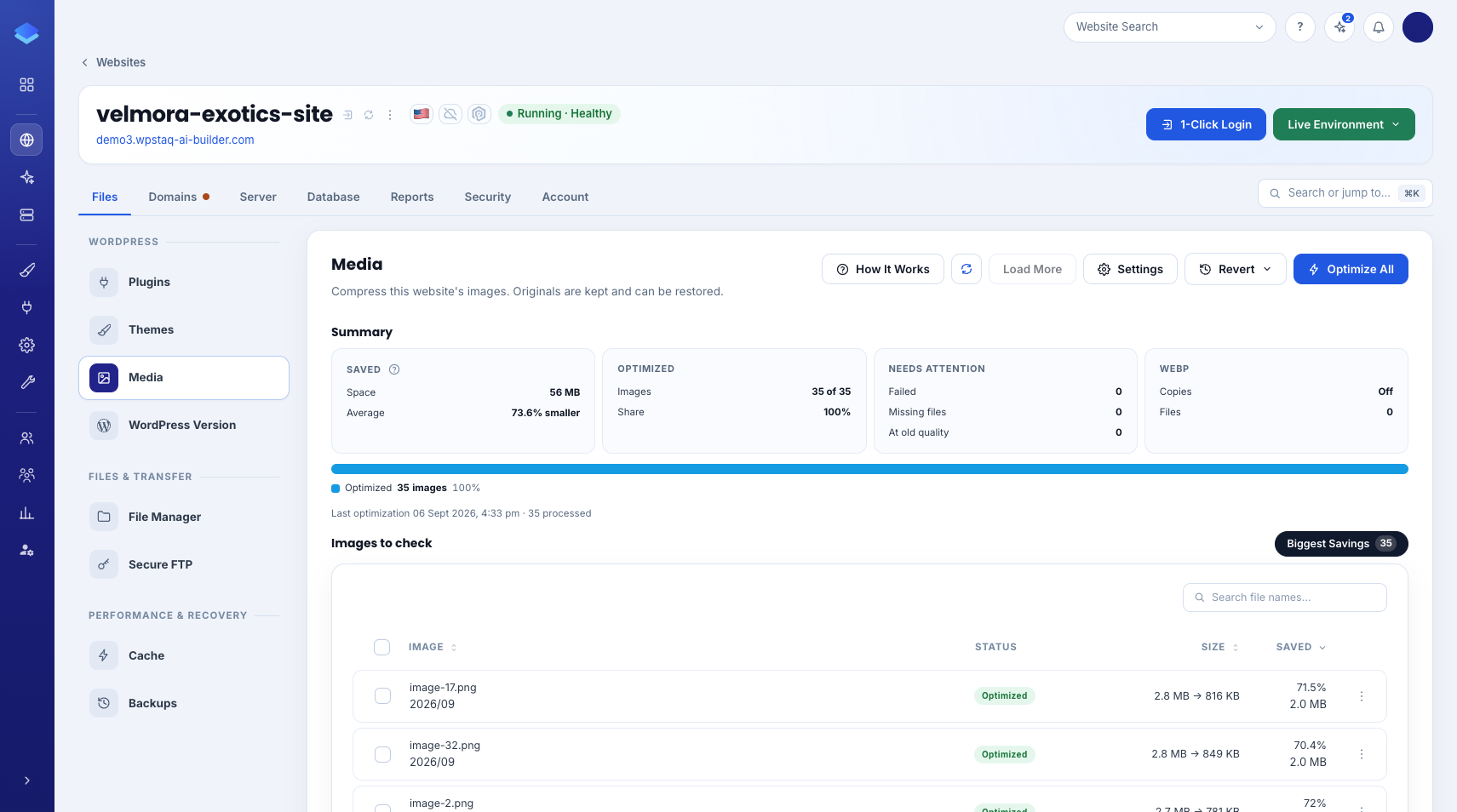
Open the WordPress site in the Staq dashboard and go to Files → Media.
Not only can you optimize all images from the Staq interface, but it gives you data such as:
- Images that failed
- Images that were never processed
- Images still on the old quality
- The ones that saved the most space
The Same Settings Inside WordPress
You can set this from WordPress as well. Log in and open Staq Hosting → Settings → Media.
Media optimization compresses new uploads for you. On the site in these screenshots, JPEG quality is 82 and PNG quality is 80.
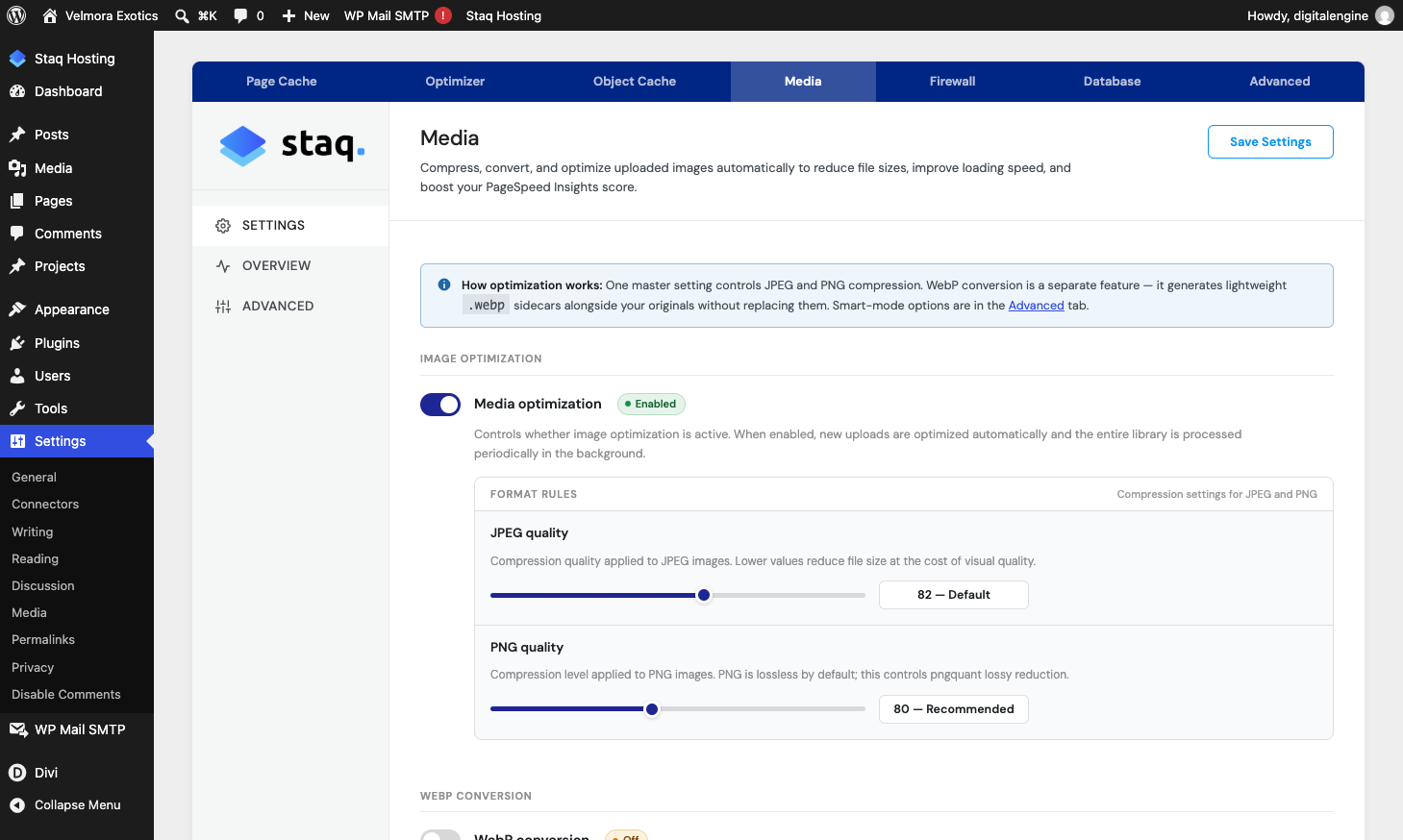
Two more controls sit on that same screen. Both can stay off until you want them.
- WebP conversion writes a WebP copy next to the original and keeps the original. Page cache can serve the WebP file.
- Limit image dimensions caps the long side of a new upload. The choices are 1920 (Full HD), 2048, 2560 (the WordPress default), and 3840 (4K). WordPress already scales uploads larger than 2560 pixels and keeps the original file.
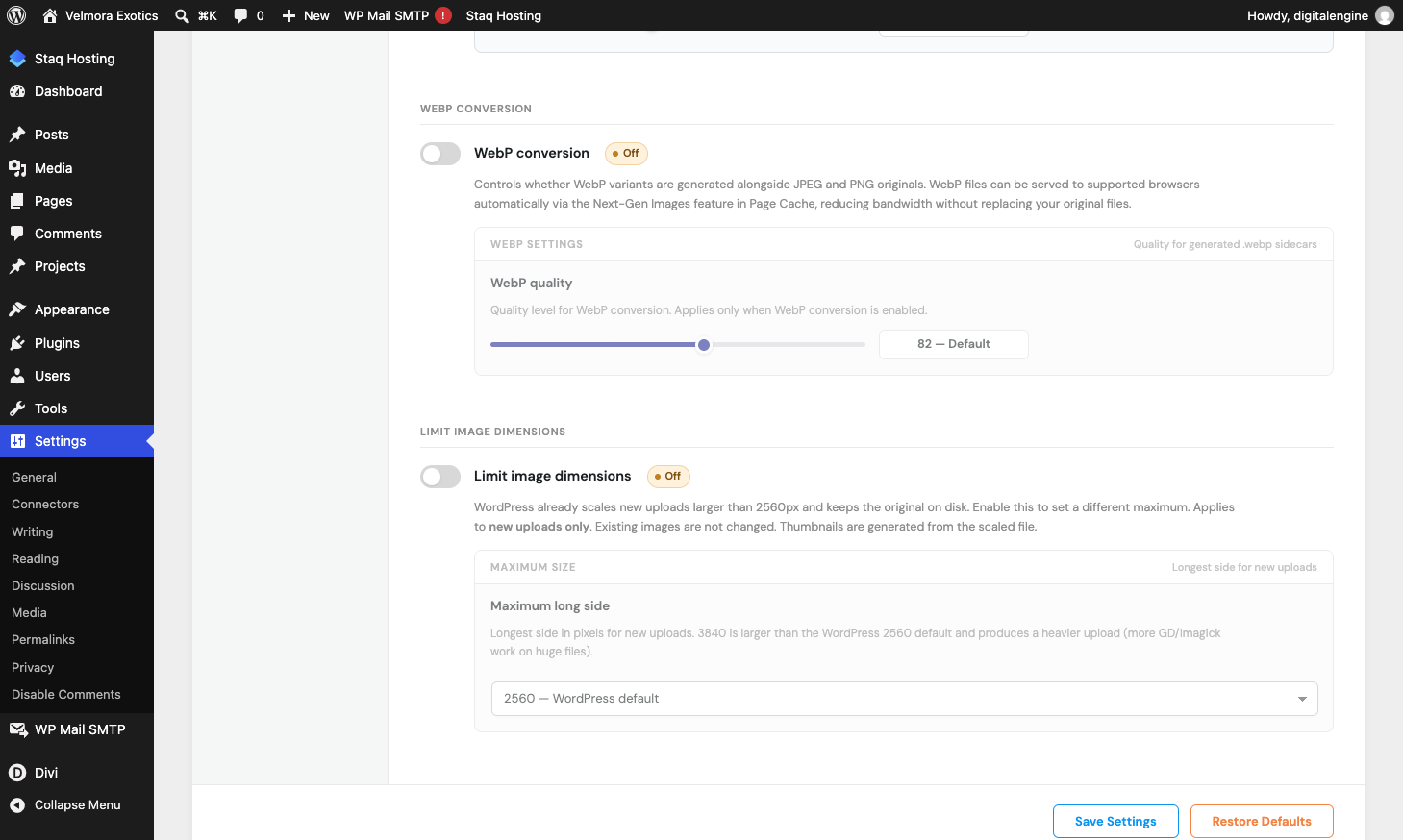
Turn these on from the Media tool’s Settings action in the Staq dashboard, or from the WordPress screen above.
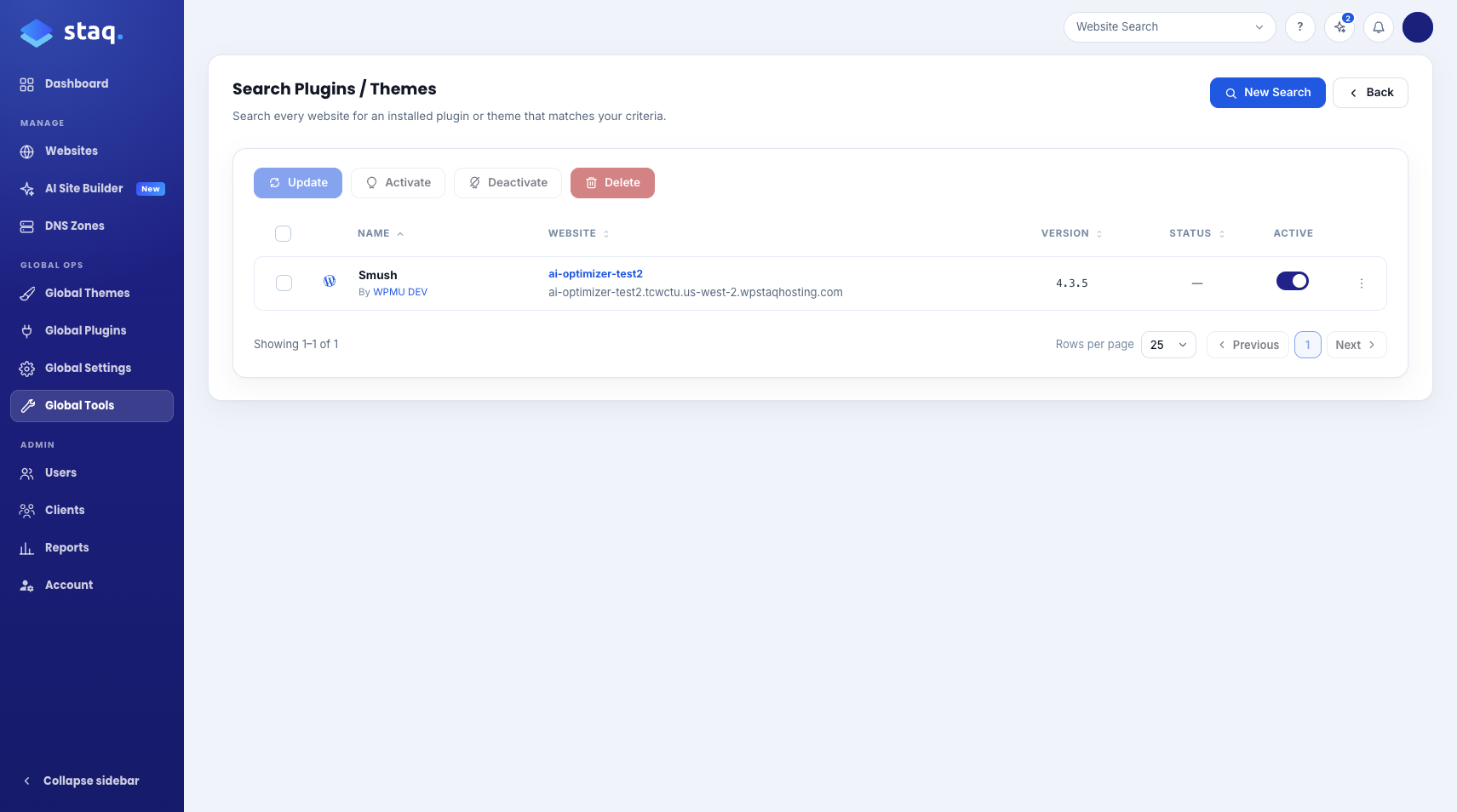
Agencies on Staq have already dropped Smush and used this instead. If an image compression plugin is still installed, you don’t need it for this job.
Remove the Old Plugin Across the Fleet
This is nothing new. This feature is a few years old now but if you wish to remove your image optimization plugin (or any other plugin), inside the Staq Dashboard, go to Global Tools > Search Plugins / Themes, search for the plugin, select the row and click Delete to delete across your fleet of sites.
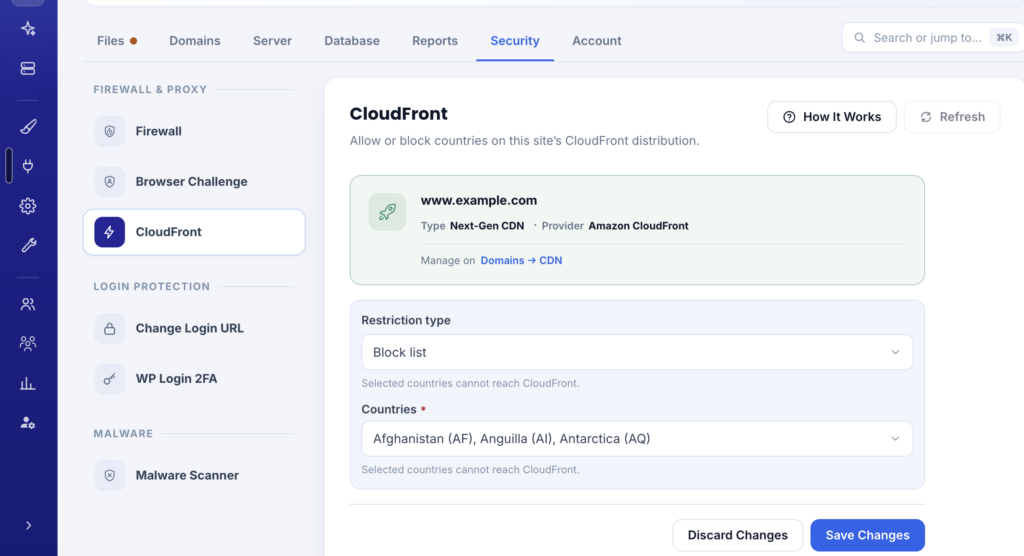
Block Countries directly from Staq Next-Gen CDN
When a site is on Staq Next-Gen CDN, by default, it can serve traffic to all countries across the globe. But there are certain cases that you wish to block a certain country or block many countries. Under Security > CloudFront, you can now do that:
Browser Challenge and Under Attack
This is applied both automatically and manually.
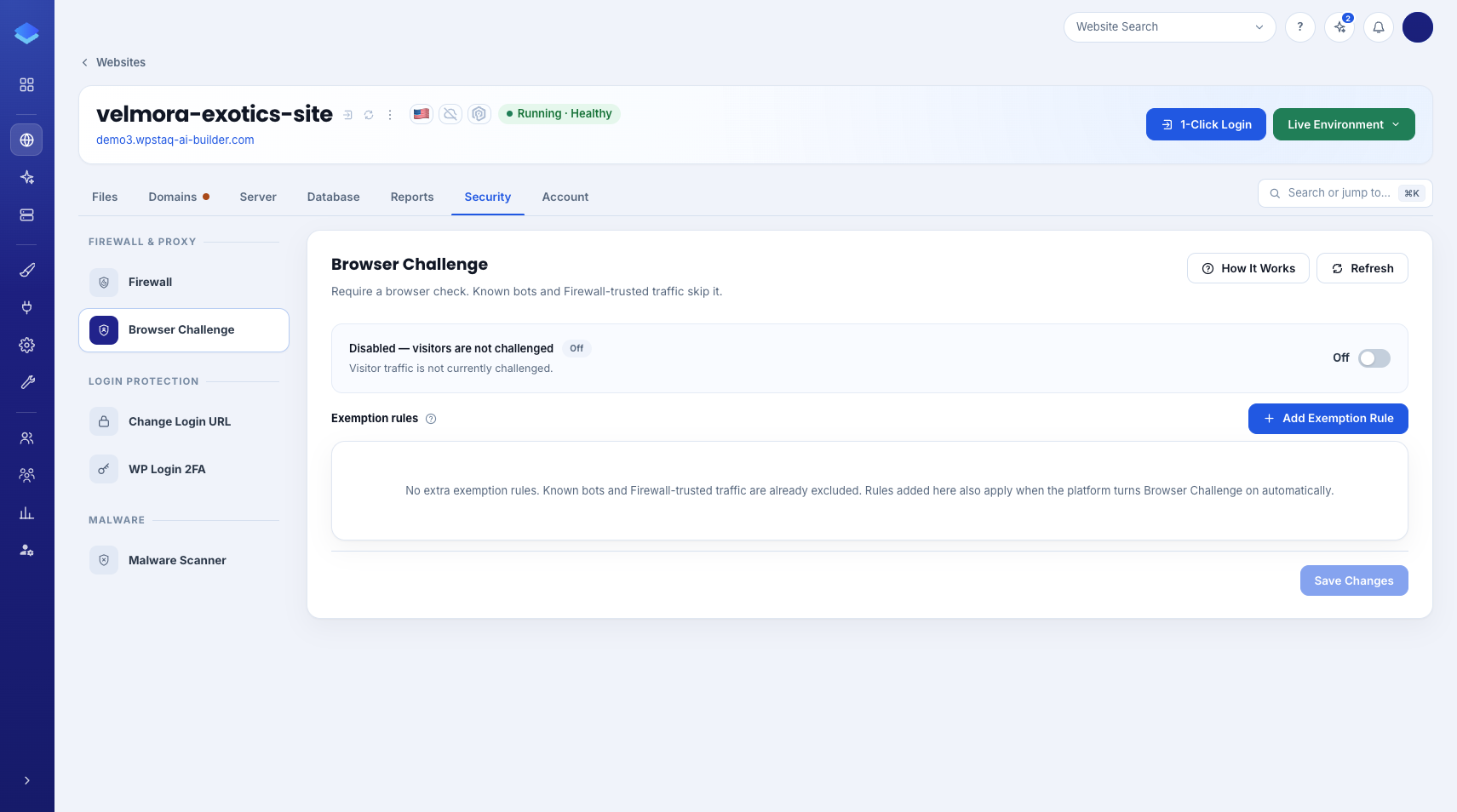
Browser Challenge is applied automatically when the infrastructure detects certain rules or conditions. It does not affect users because they are automatically allowed into the website (there is no recaptcha). It’s like a honeypot that blocks unwanted bots.
But if you wish to enable it manually, you can go to the site’s Staq Panel and open Security → Browser Challenge.
Known bots, traffic the firewall already trusts, and Allow SEO robots do not get affected even if it’s enabled.
If you wanted to enable Browser Challenge across all your sites in 1-click, open Global Tools → Toggle Security Modes. That screen shows Browser Challenge and Cloudflare Under Attack. Turn either one on or off for the sites you choose.
Response NGINX Headers
You can now select pre-configured rules like Hotjar and enable Permissions-Policy now without contacting our support team.
Inside a site’s Staq Panel, open Server → Nginx Config → Headers.
Permissions-Policy is the one to set with intent. You get three choices:
- Exclude leaves it out
- Standard keeps camera, microphone, and location available on this site
- Strict blocks those as well
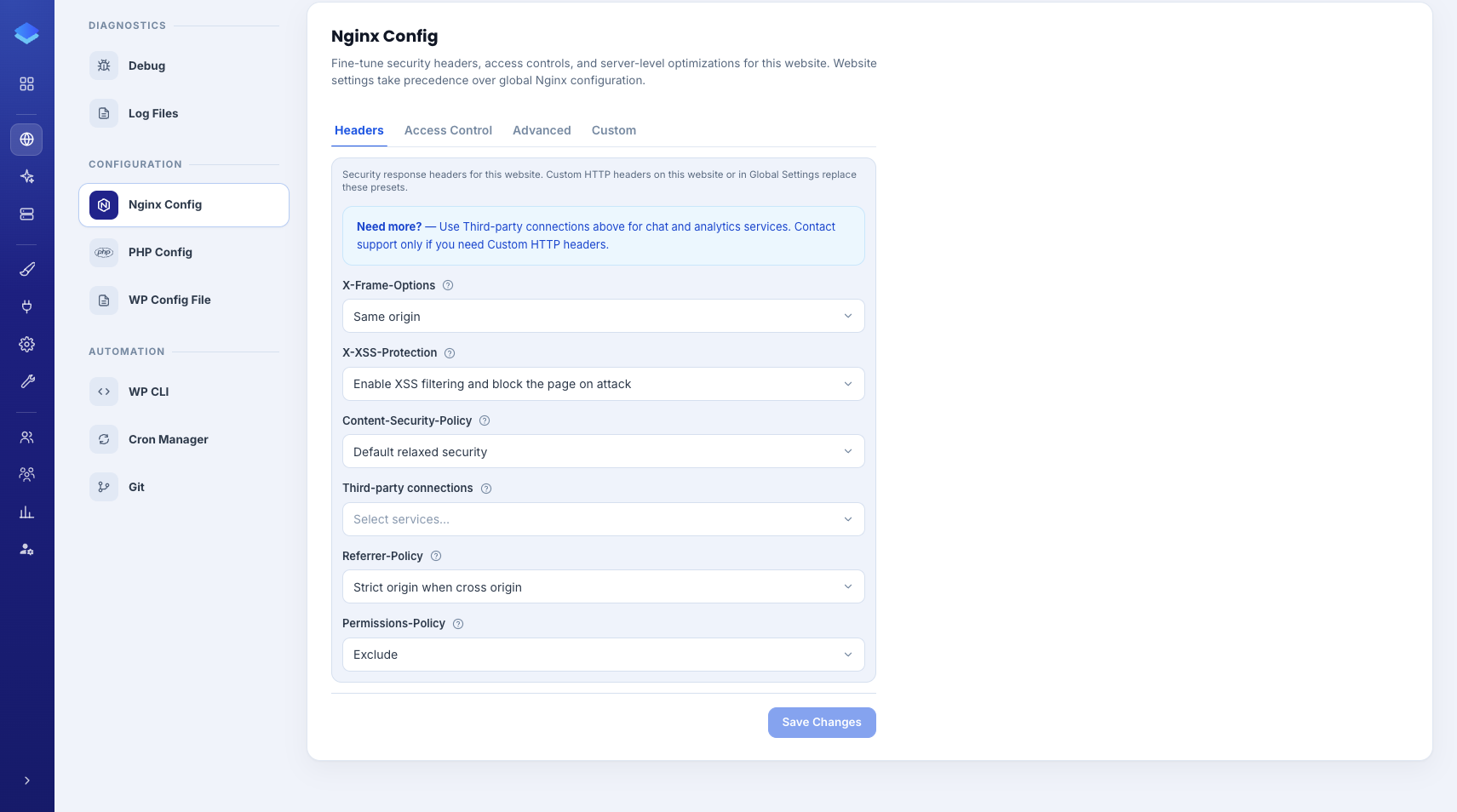
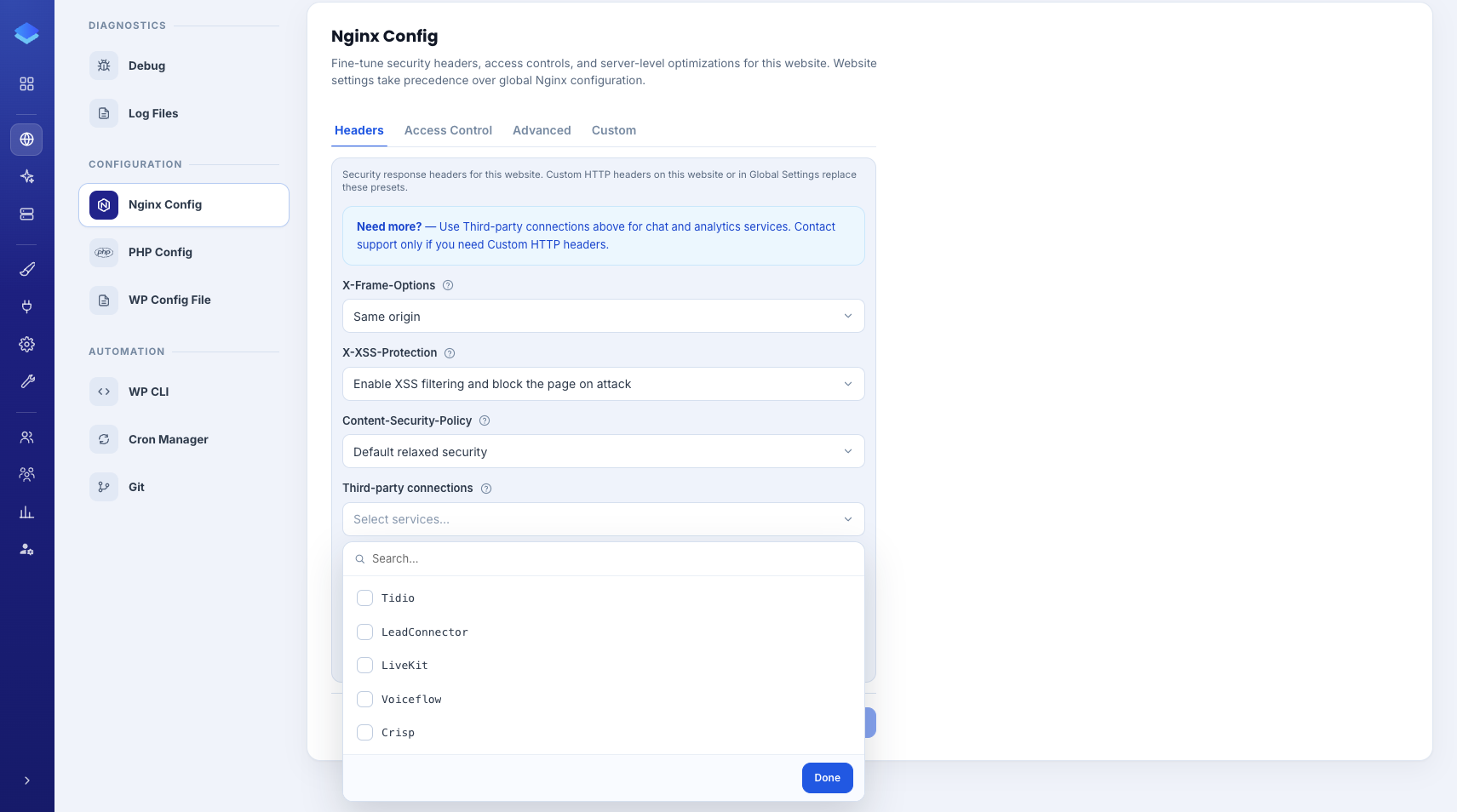
Third-party connections is a ready-made list. Turn on the services you actually use, and those scripts are allowed by the policy: Hotjar, Tawk.to, Tidio, LeadConnector, LiveKit, Voiceflow, and Crisp.
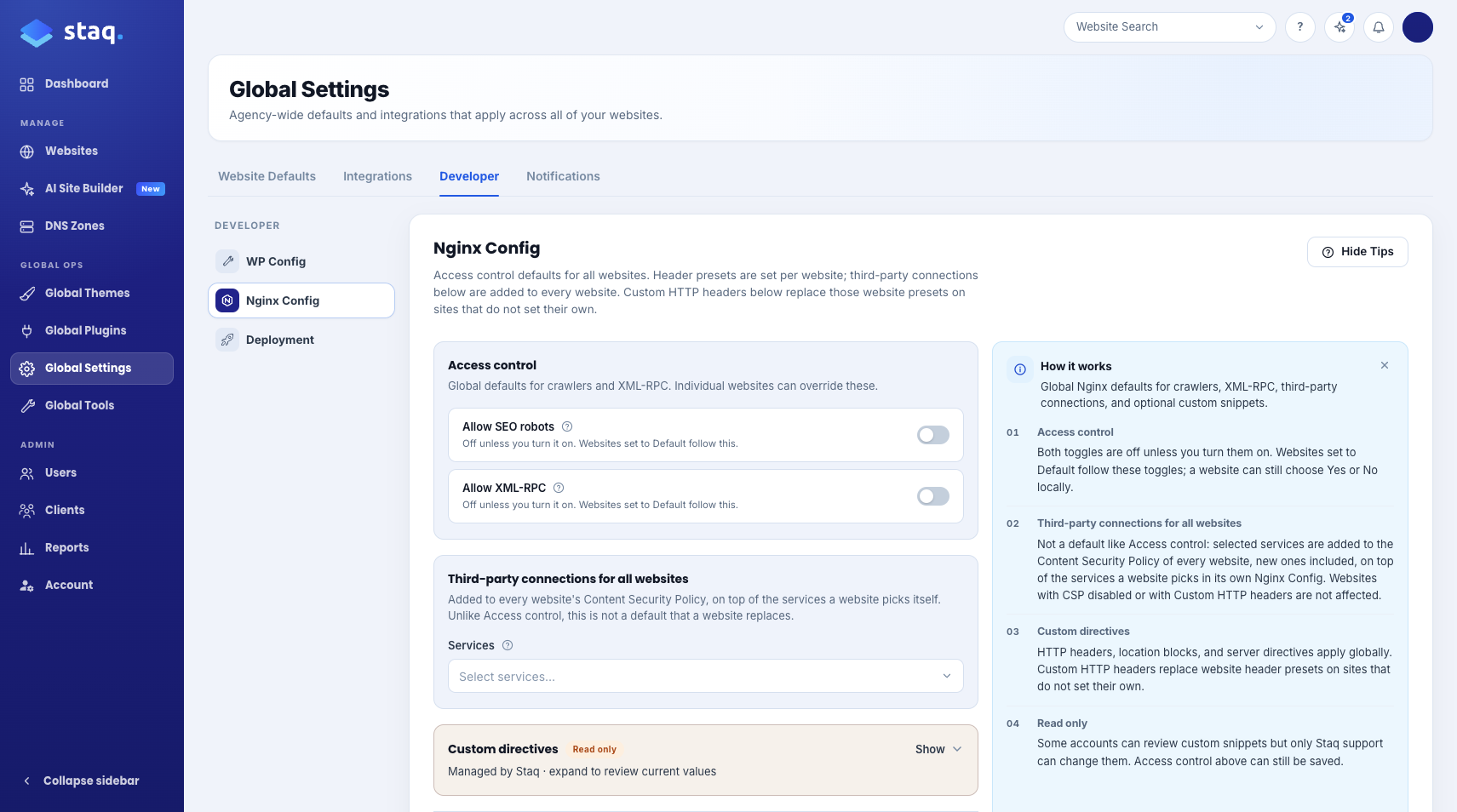
Apply pre-configured NGINX rules across your fleet of sites
You might have Hotjar across your fleet of sites. In 1-click, you can now apply to your fleet of sites.
Under Global Settings → Nginx Config, pick those services under third-party connections for all websites. They are added to every website’s Content-Security-Policy, on top of that site’s own list.
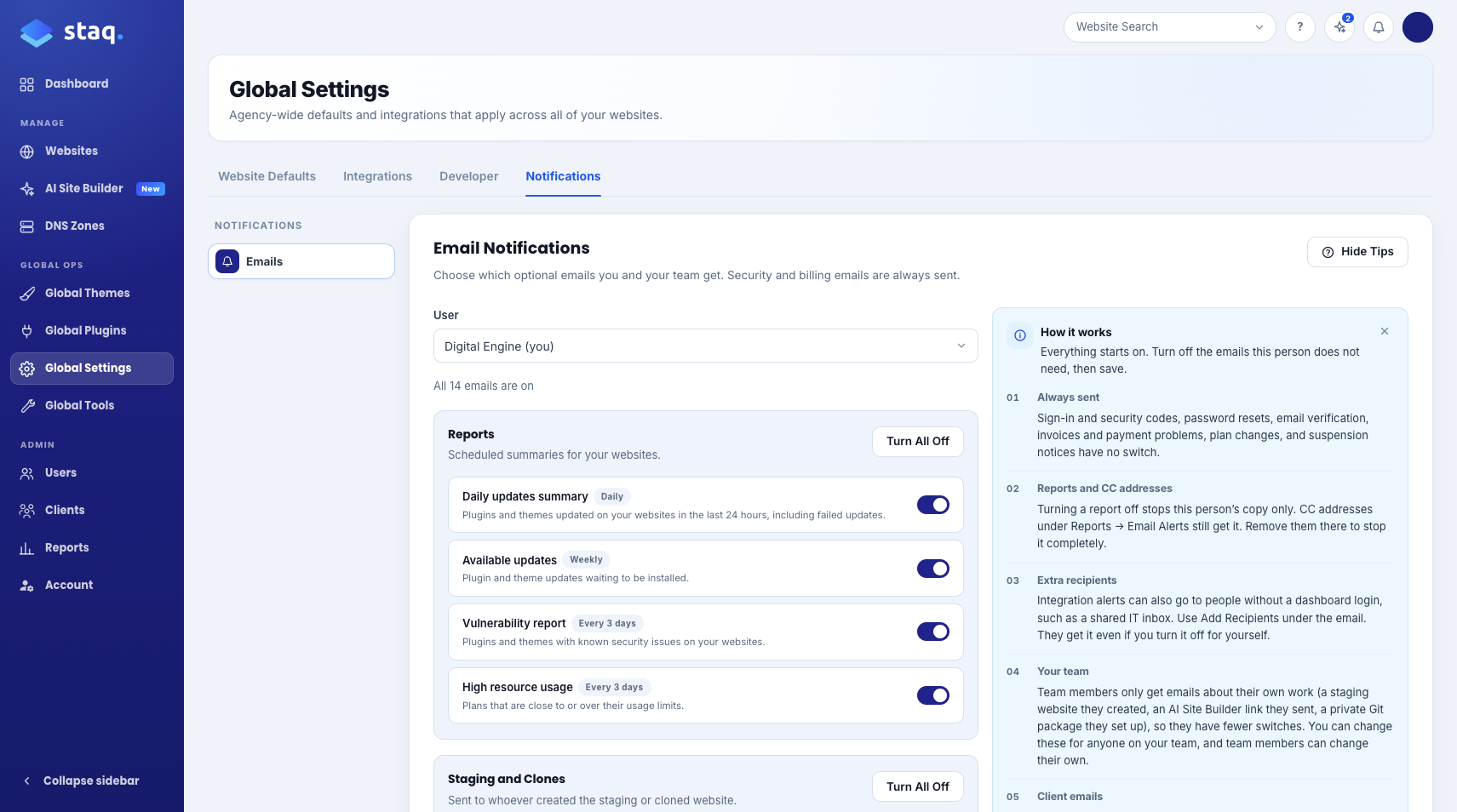
Choose Which Emails You Get
Now you can decide who receives emails, or if you wish to disable all email notifications from the Staq system.
Under Global Settings → Emails, you decide which optional emails you and your team actually want.
Reports
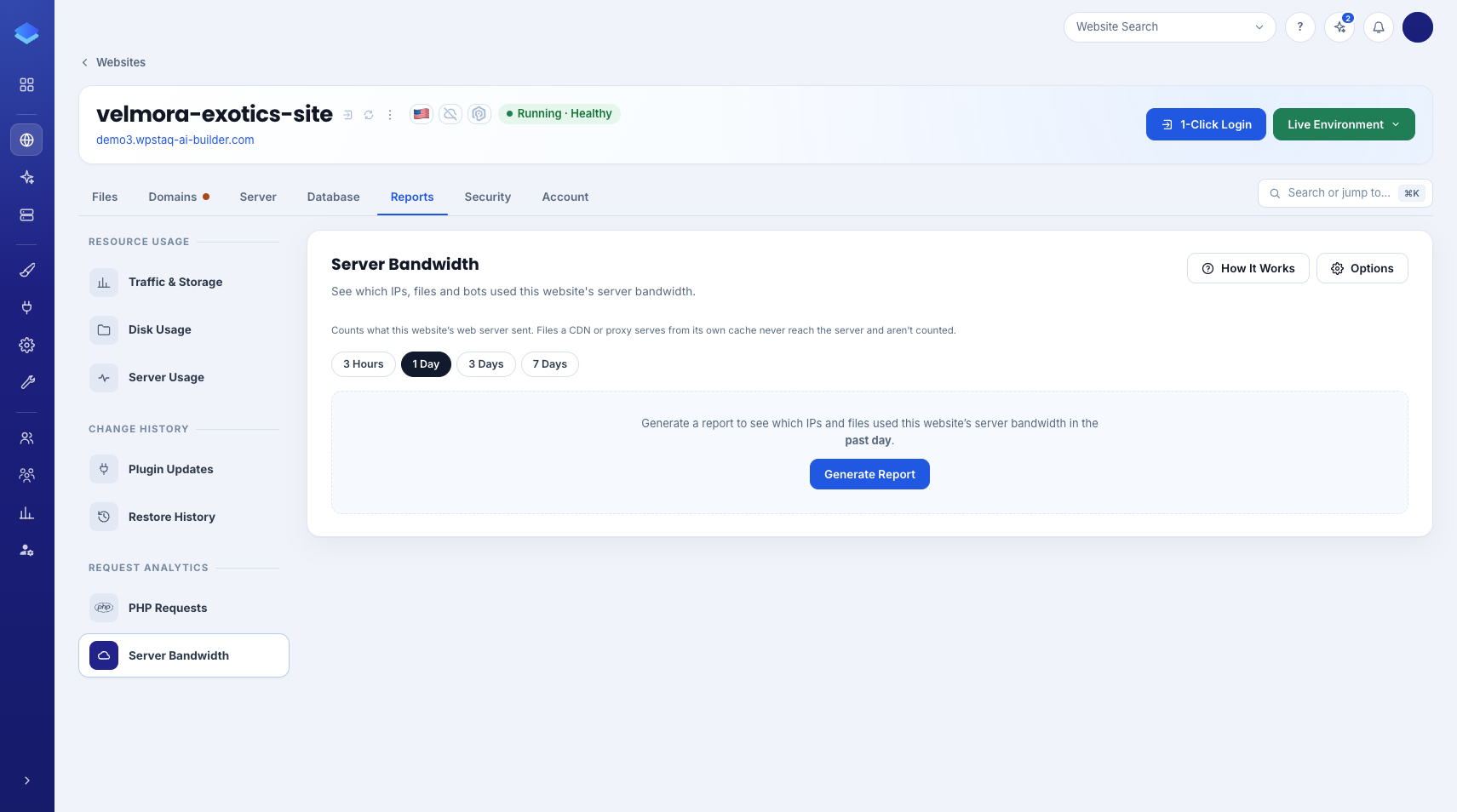
We have added additional reports that give you more insights into both server bandwidth and storage.
Server Bandwidth
Inside Staq Panel for a site, open Reports → Server Bandwidth.
You can now generate bandwidth reports to see which IP address, UserAgent is consuming the most bandwidth, to seeing which file is using the most bandwidth so that you can decide whether to optimize or not.
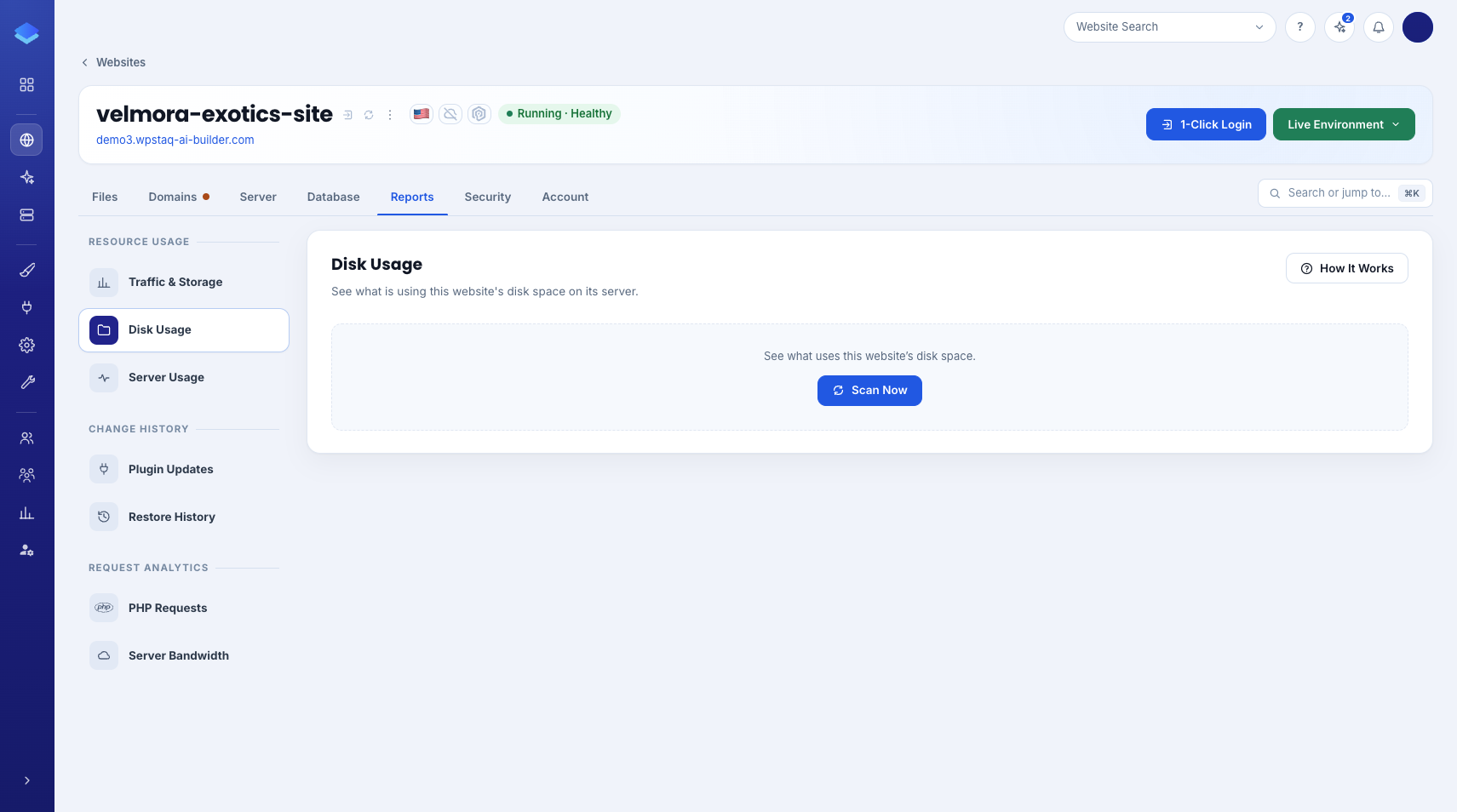
Storage Usage
On a site, open Reports → Disk Usage and run a scan.
You can see while file or folder is using the most disk usage, to even using permanent backup files that exist under Cloud Storage. It gives you insights where you can optimize/delete files.
A teaser into our AI Site Builder
We launched our new AI Site Builder back in September. Since then, we’ve been working around the clock with multiple teams covering 24 hours each day so we can release this product ASAP.
This is a teaser but when it is ready, you’ll be able to:
- Send a discovery form to a client to capture information about their business
- fetch a design from an inspired link. That could be a website that you can copy the layout or you have a Figma design.
- Recreate the site natively in Elementor and Divi
- Send a white label link to collect client feedback after a website has been created
- Deploy into Staq
What’s Next
If you have an MCP workflow, and want to automate more of your work inside Staq, reach out to our Support team and we can provide access to our API service. But soon, we will be releasing the Staq MCP. Also, we are releasing static hosting so you can keep all your static HTML sites inside Staq dashboard as well. Staq fixes your WordPress Ops at scale and we want to extend this with Staq fixes your Hosting Ops at scale since we will support more than just WordPress into the future.
Till the next one,
Emmanuel
See it for yourself.
Create a WordPress environment in 60 seconds. Migrate your first site free. 400+ agencies already made the switch.
