


Getting Started
Deployment- Steps to Minimise or Avoid Downtime When Taking a Website Live
- Automate Permalink Structure with Custom Deployment Script
- Integrating Git for whole site environment
- Create Site (WordPress environment)
- How to clone an existing site on Staq
- How to create a staging site
- How to sync a staging site to production
- How to take a website live (GoLive)
- Go Live with a subdomain
- Switch an existing Staq site to a brand new Staq site
- Customizing Deployment with CLI Commands
- Images broken in Slider Revolution after migration or CDN deployment
- Smart Slider images are broken after taking my website live
- Do you support Multi-Sites?
- Can I migrate a site to Staq using a third-party plugin?
- How to export a website from Staq to your own hosting environment
- Accessing the Old Website or Server Using the Hosts File
- How to migrate a site to Staq
- When a migration fails
- How to create a staging site
- How to sync a staging site to production
- Transitioning Changes from Staging to Live: A Guide to Synced Modifications
- Putting a Live Site back into Dev Mode
Site Management
Backups- Creating Backups
- Restoring a backup
- How to download your backup files
- Why Don’t I See Backups for a Particular Day?
- How our backup system works (comprehensive guide)
- Organizing Websites with Labels in Staq
- How to setup Client PDF Reports
- Managing Overage Costs and Alerts on Staq
- How to Bulk Reset Website Credentials
- Resetting Password Inside Staq Doesn’t Work
- How to Reset Your Password Inside Staq Panel
- One-Click WordPress Login Feature
- Enabling Popups for 1-Click WordPress Access in Supported Browsers
- Enable automatic plugin and theme updates with regression testing and auto rollback
- How to manually update Plugins/Themes faster using Staq Plugin Manager
- How to Deactivate or Delete a Plugin Across Multiple Sites
- Update Plugins/Themes: 1-Click to update everything
- How to install or update Plugins/Themes across all sites (globally)
- How to use Global Plugins to manage plugins at scale
- Convert plugins into Global Plugins with a single click
- How to enable Maintenance Mode
- Installing a plugin on multiple websites at once
- Why some plugins may not automatically update
- My Plugins are not updating inside WordPress
- I cannot access the backend of WordPress
- How to Fix “Briefly Unavailable for Scheduled Maintenance” Issue After Site Update
- Failed to Parse the Package Metadata: How to Fix
- How to diagnose when a Global Plugin isn’t updating across your sites
- Plugin/Theme Update Status via Email Notification
- Troubleshooting “Update Failed: Download Failed” Error
- The uploaded file exceeds the upload_max_filesize directive in php.ini
- Force deactivation of plugin/theme
- How to edit plugins/themes using a file manager editor
- How does regression testing work with Plugin/Theme updates?
- How to install plugin dependencies via Composer?
- Failed to Parse the Package Metadata: How to Fix
- How to setup Bitbucket with Staq (plugin/theme only)
- How to setup Github with Staq (plugin/theme only)
- How to replace “Staq Hosting” plugin inside WordPress with my brand
- Custom SMTP to send automated emails from Staq
Caching & Performance
Caching- Staq Cache – Caching Dynamic Information
- Configure Staq Cache
- How to clear cache of all sites in Staq
- Why Staq cache is the most optimal caching solution to use
- CLI commands for Staq cache
- Disable Staq Cache
- Enable/Disable Automatic Cache Clearing
- How to clear the cache for a selected number of pages regularly
- Disable Optimizer tool for certain pages
- How the Staq Cache Preload works
- How to cache a URL with a query string
- Issues migrating to Staq because of LiteSpeed Cache
- My website design/layout is broken
- How to know when a page is cached and how to diagnose it if it isn’t
- Nonce and Cache TTL
- Fixing “Media Error: Format(s) Not Supported or Source(s) Not Found” on Videos
- Enhancing Core Web Vitals: What web development processes to change
- Elementor: Maximise PageSpeed Insight scores with these settings
- How to Scale a WordPress Website with Staq
- How to Speed Up the Backend of WordPress & AJAX requests
- How to Increase PHP Workers
- Cost Optimization Strategies
- Assessing Memory and PHP Worker Resources
- How to Optimize Autoloaded Options in WordPress for Better Performance
- Setup Speed Optimization
- Disable Optimizer tool for certain pages
Security
Security- Content Security Policy Error: Causes and Solutions
- Enable Multi-Factor Authentication (MFA) on Staq
- How to Change the WP Login URL
- How to enable XML-RPC
- Staq enforces HSTS by default
- SendGrid IP Access Management
- Unblocking WordPress REST API Access
- Enabling 2FA for WordPress Sites
- Staq’s Multi-Layer Security Architecture
- How Staq Firewall Blocks Bots Attacking Contact Forms
- How to block a country in the firewall
- Cloudflare 520 or 521 error
- How to stop DDoS attacks
- How to configure the Max Login Attempts (Firewall)
- How we block malicious comments submitted by bots
- Staq’s Multi-Layer Security Architecture
- Service Unavailable / 503 Error code and how to fix
- How to whitelist an IP address
- Staq is blocking my SEO tools with 502 or 503 server errors
- How the Staq Firewall system works
- My website uptime monitoring is showing the website is down but it’s up when I check?
- Why was an IP address blocked by Staq Firewall?
- How to ban an IP Address using Staq Firewall
SMTP, CDN & DNS
SMTP- How to use Gmail as an SMTP service in WordPress
- Diagnosing SMTP / Email Connection, Receiving Emails
- Override Specific SMTP Global Settings
- SendGrid Integration
- Custom SMTP to send automated emails from Staq
- How to setup SMTP?
- Installing “WP Mail SMTP Pro”
- How to setup Staq Traditional CDN
- Enable Next-Gen CDN Instructions
- Increase CDN CloudFront invalidations daily limit
- Images do not show when I’m logged out
- Exclude Paths from Next-Gen CDN Cache
- Staq Next-Gen CDN vs Traditional CDN vs Cloudflare
- Integrating Cloudflare with Staq
- How to enable Cloudflare CDN on Staq
- Staq Next-Gen CDN vs Traditional CDN vs Cloudflare
- How to disable Cloudflare
- How to stop DDoS attacks
- How to use Cloudflare Proxy with a Staq hosted site
- Staq Next-Gen CDN: One or more CNAME already associated with resource
- CDN issue and how to diagnose and rectify
- ERR_SSL_VERSION_OR_CIPHER_MISMATCH with Cloudflare
- Traditional CDN Failed to Deploy Due to SSL Validation (CAA Error)
- CDN cache not clearing after changes to plugin/theme
- Is my site loading from AWS CloudFront?
- How to Add NS Records for Subdomains on Staq
- DNS is not resolving
- Where you access the A record or NS Record
- How to add Google or Office365 MX records to Staq DNS
- Resolving Localized Issues Caused by Hardcoded IP Addresses in the Hosts File
- TXT record in DNS – CharacterStringTooLong
- How to move the DNS across to Staq when the site is already hosted on Staq
- How to enable instant DNS Propogation
- Switching DNS back to Staq and now the site doesn’t load
- IT company says they want to move DNS away from Staq. What should I say?
- Does Staq sell and manage domain names?
- DNS location and how to add a DNS entry
- Steps to Minimise or Avoid Downtime When Taking a Website Live
Server & Tools
Analytics & Logs- How to track a site’s activity history
- Someone installed/deactivated a plugin. What logs are there?
- Server Logs
- Why Staq Shows More “Human Visitors” Than Google Analytics
- How to check if CRON jobs are working
- How to clear the cache for a selected number of pages regularly
- How to setup a Cron job in Staq
- Resolving the “Missed Schedule” Issue in WordPress
- Access to phpMyAdmin / database
- SQL query to delete entire WooCommerce products in one hit
- Images broken in Slider Revolution after migration or CDN deployment
- How to do a Search & Replace
- Import a third-party SQL database over an existing website
- Running SQL queries inside Staq Panel
- How to use Staq Query Tool to diagnose database queries
- How to download your backup files
- How to debug an issue
- My Website is Slow – How to Debug
- Troubleshooting Import Process Errors in WordPress
- How to Use Staq Debug for Troubleshooting Issues
- Integrating Git for whole site environment
- How to setup Bitbucket with Staq (plugin/theme only)
- How to setup Github with Staq (plugin/theme only)
- Increase Max File Upload limit
- The server cannot process the image
- Increase Max Request Timeout
- Does Staq still support PHP 7.4?
- How to downgrade or upgrade to PHP version
- How to Increase PHP Workers
- Increasing Server Memory
- How to Increase PHP Max Input Vars Limit
- Setup Domain Redirects
- Server Redirects
- SEO 301 Redirect
- How to Handle Regex Redirects with Query Parameters in WordPress
- How to Serve Static HTML Files Alongside Your WordPress Site
- Staq is blocking my SEO tools with 502 or 503 server errors
- Robots.txt file – managing the default file
- How to fix Access-Control-Allow-Origin issue
- Cloudflare 520 or 521 error
- Troubleshooting Import Process Errors in WordPress
- 504 Gateway Time-out error
- Error 1000 on Cloudflare
- Fixing CORS Errors
- 502 Gateway error
- Fixing MIME-Type Errors Preventing Styles and Fonts from Loading
- Service Unavailable / 503 Error code and how to fix
- Server 500 error in browser. How to fix
- 403 Server Error
- Too Many Requests with Error Code 429
- SSL Is Not Generating
- 403 Server Error
- How to add a custom SSL
- ERR_SSL_VERSION_OR_CIPHER_MISMATCH with Cloudflare
- Steps to Minimise or Avoid Downtime When Taking a Website Live
- Error 1000 on Cloudflare
- How SSL Certificates Work on Staq
- How to create a custom SSL certificate
Staq Billing
Staq Billing > Account- How to view invoices (Agency Invoice)
- How to update your credit card (Agency account holder only)
- Invoice breakdown and viewing excess charges
- How to add/update client’s credit card
- How to Resolve “A User with the Specified Email Already Exists” Error
- How to view historical client invoices
- How to create a client and request for credit card details
- Assigning a Client to your agency custom plan
- Amending Your Client’s Details on File
- How to Determine the Reason for a Client’s Payment Failure
- Customise automated emails to your clients
- Adding a custom terms and conditions for your clients (digital agency POV)
- Changing currency when using Staq Billing to charge clients
- Step-by-step instructions in setting up your automated billing to charge your clients hosting fees
Media
Media Media - Diagnose- Images broken in Slider Revolution after migration or CDN deployment
- Images do not show when I’m logged out
- Images or PDFs Showing a “404 Not Found” Error
- How to disable lazyload
Accounts & Billing
Accounts & Billing- Renaming Your Website in Staq
- Canceling an existing site subscription and assigning it to a new user
- Custom SMTP to send automated emails from Staq
- User Access to Staq Platform
- Cost Optimization Strategies
- Changing the timezone throughout the Staq dashboard
- How to see when dev sites will incur charges
- How to unsubscribe or delete or cancel a site in Staq
- Client Transfer
- Does Staq offer annual billing?
- Pricing: How Does Staq Charge?
- Enable Multi-Factor Authentication (MFA) on Staq
- Enabling Popups for 1-Click WordPress Access in Supported Browsers
- Putting a Live Site back into Dev Mode
General
WordPress Hosting- Do You Provide SSH Access?
- Can I run 2 separate WP installs on the same domain?
- How to enable XML-RPC
- Hosted elsewhere (Site no longer hosted on Staq) Message
- Robots.txt file – managing the default file
- Staq Infrastructure Overview
- How to edit the wp-config.php file on Staq
- Do you support Multi-Sites?
- Do we offer email hosting?
- Is Sage/Roots compatible with Staq?
- Do You Provide Web Hosting to Any Platform or Just WordPress?
- My website design/layout is broken
- Website is down
- How to use Staq Query Tool to diagnose database queries
- How to use Query Monitor plugin
How to know when a page is cached and how to diagnose it if it isn’t
Caching plays a crucial role in enhancing your website’s speed and overall performance. It’s vital to ascertain whether your pages are being cached correctly. If they aren’t, you need to know how to diagnose and rectify the issue. This guide walks you through identifying, diagnosing, and resolving caching issues effectively.
Identifying if a Page is Cached
Using Source Code:
- Ensure you’re logged out of WordPress or browse in incognito mode.
- Navigate to the desired page.
- Right-click on the page and select ‘View Page Source’.
- In the source code, search for the following line:
<!-- Cached & Optimized by Staq (https://www.wpstaq.com): <DATE> GMT -->

Verifying with Redis Object Cache:
- Check the Redis Object Cache status by navigating to the Redis Object Cache page inside Staq Panel for the site. It appears under Database. Flush the cache to see if that resolves the issue.
- If Redis Object Cache is disabled, no caching is applied to logged-in users. This confirms caching issues are unrelated to logged-in user behavior.
Using Staq Next-Gen CDN:
- Verify if your website is being preloaded from AWS Cloudfront. Refer to the guide:
Is My Site Loading from AWS Cloudfront?
Diagnosing Why a Page Isn’t Cached
Query Strings
If your page URL contains a query string, you’ll need to configure it for caching. Refer to our guide:
How to Cache a URL with a Query String.
Page-Specific Cache Settings in WordPress
Navigate to the page edit screen inside WordPress and check if caching is enabled or disabled specifically for that page:
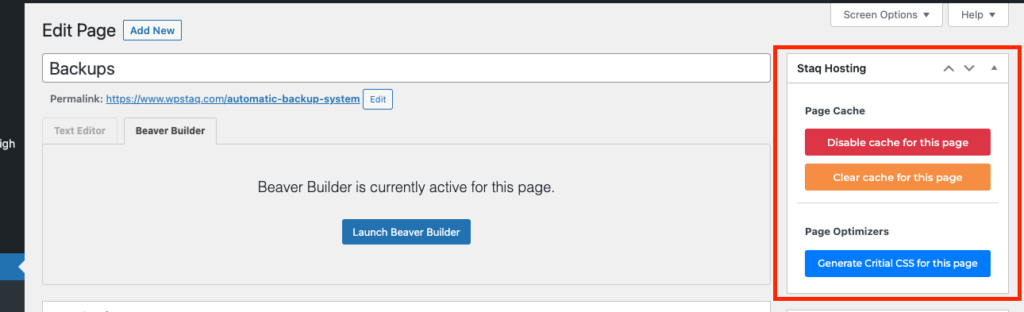
Staq Hosting Settings
Go to Staq Hosting > Options and review the “Disable caching for specific pages” section to verify if the page is listed:
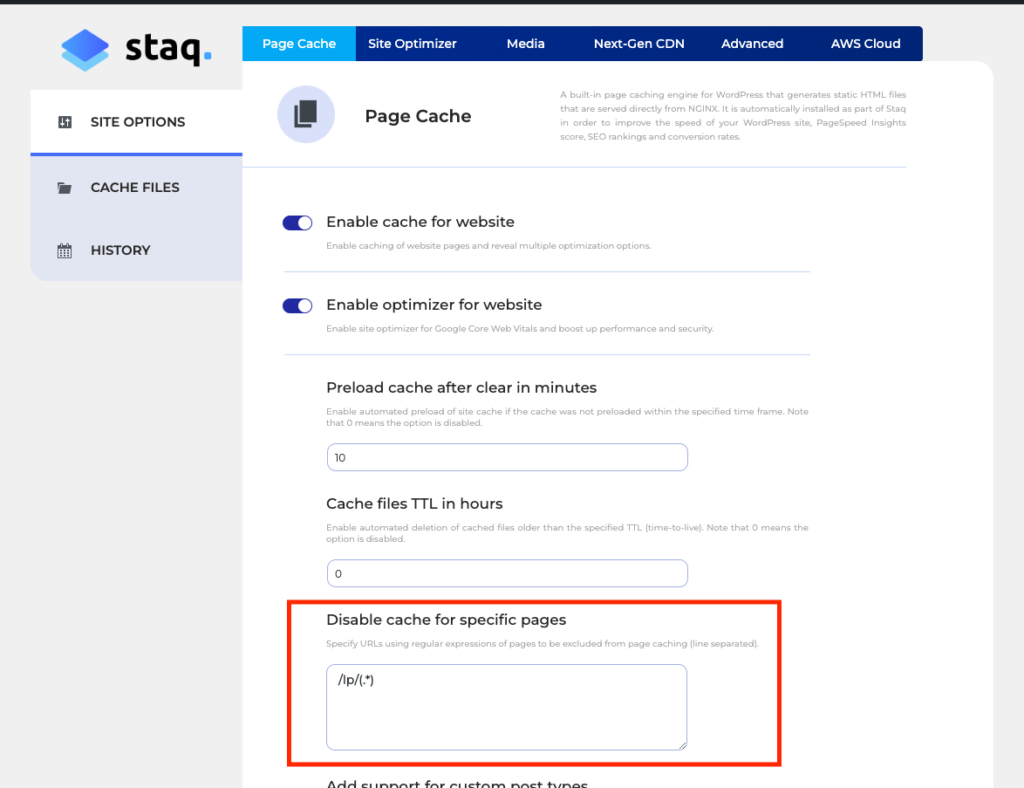
Testing with Optimizer and Caching Features
If caching issues persist, follow these steps:
- Disable Redis Object Cache and check if the issue is resolved.
- If the issue remains, go to Staq Hosting > Optimizer and disable specific features:
- Test the page in Incognito Mode after disabling each feature (e.g., delay or defer JS, CSS minification).
- If disabling Optimizer features resolves the issue, isolate which feature caused the conflict and adjust settings accordingly.
- If disabling the Optimizer does not resolve the issue, try disabling caching entirely. If this works, re-enable caching and adjust Optimizer settings to identify the root cause.
Other Considerations
If the page requires a password, ensure the correct password is used when testing.
Final Thoughts
Caching is pivotal for your site’s optimal performance. Regularly verify if your pages are cached and, if not, diagnose the cause promptly. By following the above steps, you can identify and resolve caching issues efficiently, ensuring your site delivers the best experience possible for your visitors.
Need some help?
We all do sometimes. Please reach out to our support team by dropping us a support ticket. We will respond fast.
